Run an agent as a step in your workflow, reasoning and using tools to complete a task
The new Agent node is in beta. It’s on by default on Docker Compose, with its runtime bundled in.For production, replace DIFY_AGENT_SERVER_SECRET_KEY with your own random value.
Classic Agent
New Agent
The classic Agent node gives your LLM autonomous control over tools, enabling it to iteratively decide which tools to use and when to use them. Instead of pre-planning every step, the Agent reasons through problems dynamically, calling tools as needed to complete complex tasks.
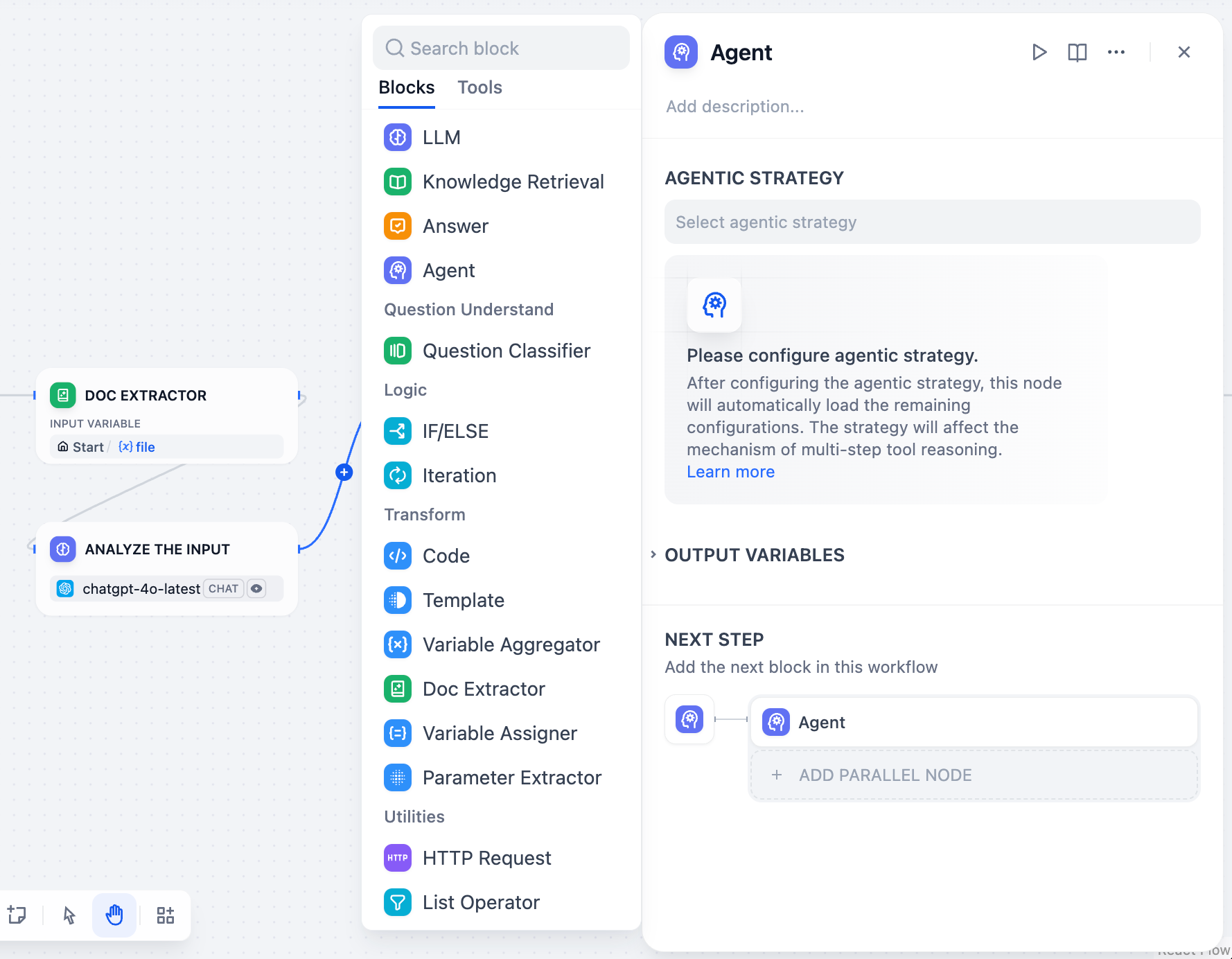
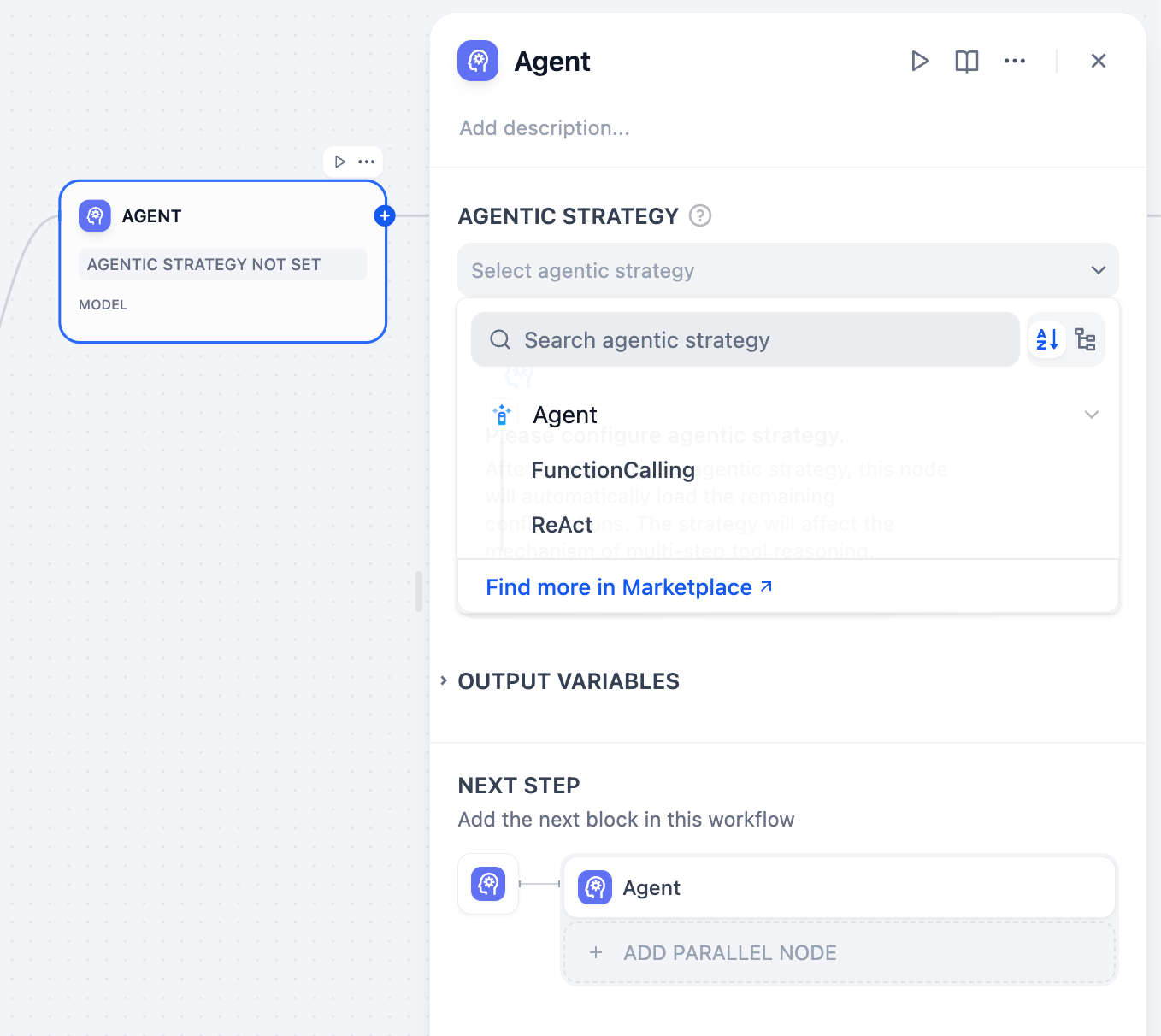
Agent strategies define how your Agent thinks and acts. Choose the approach that best matches your model’s capabilities and task requirements.
Available Agent Strategy Options
Function Calling
ReAct (Reason + Act)
Uses the LLM’s native function calling capabilities to directly pass tool definitions through the tools parameter. The LLM decides when and how to call tools using its built-in mechanism.Best for models like GPT-4, Claude 3.5, and other models with robust function calling support.
Uses structured prompts that guide the LLM through explicit reasoning steps. Follows a Thought → Action → Observation cycle for transparent decision-making.Works well with models that may not have native function calling or when you need explicit reasoning traces.
Install additional strategies from Marketplace → Agent Strategies or contribute custom strategies to the community repository.
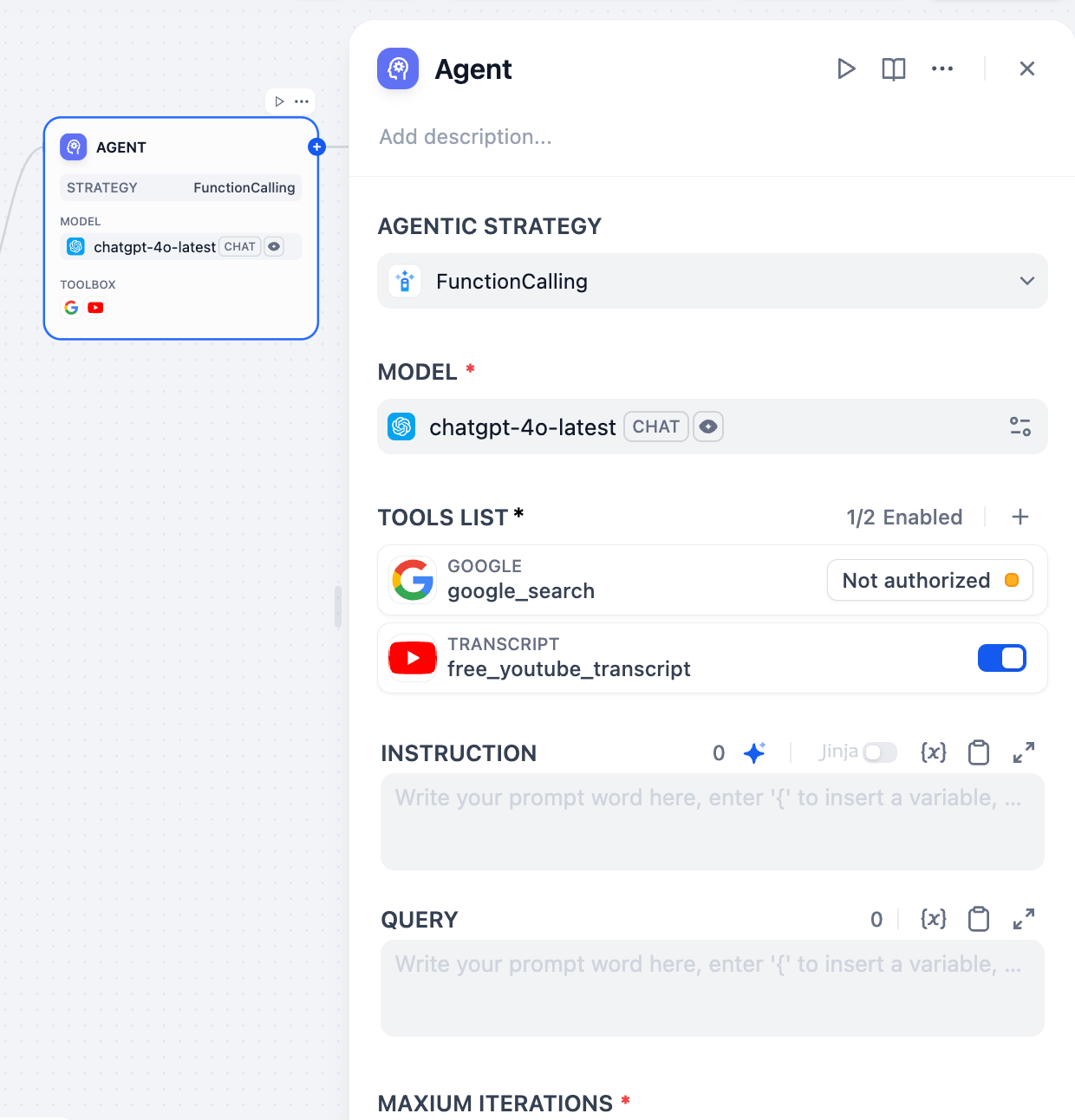
Choose an LLM that supports your selected agent strategy. More capable models handle complex reasoning better but cost more per iteration. Ensure your model supports function calling if using that strategy.
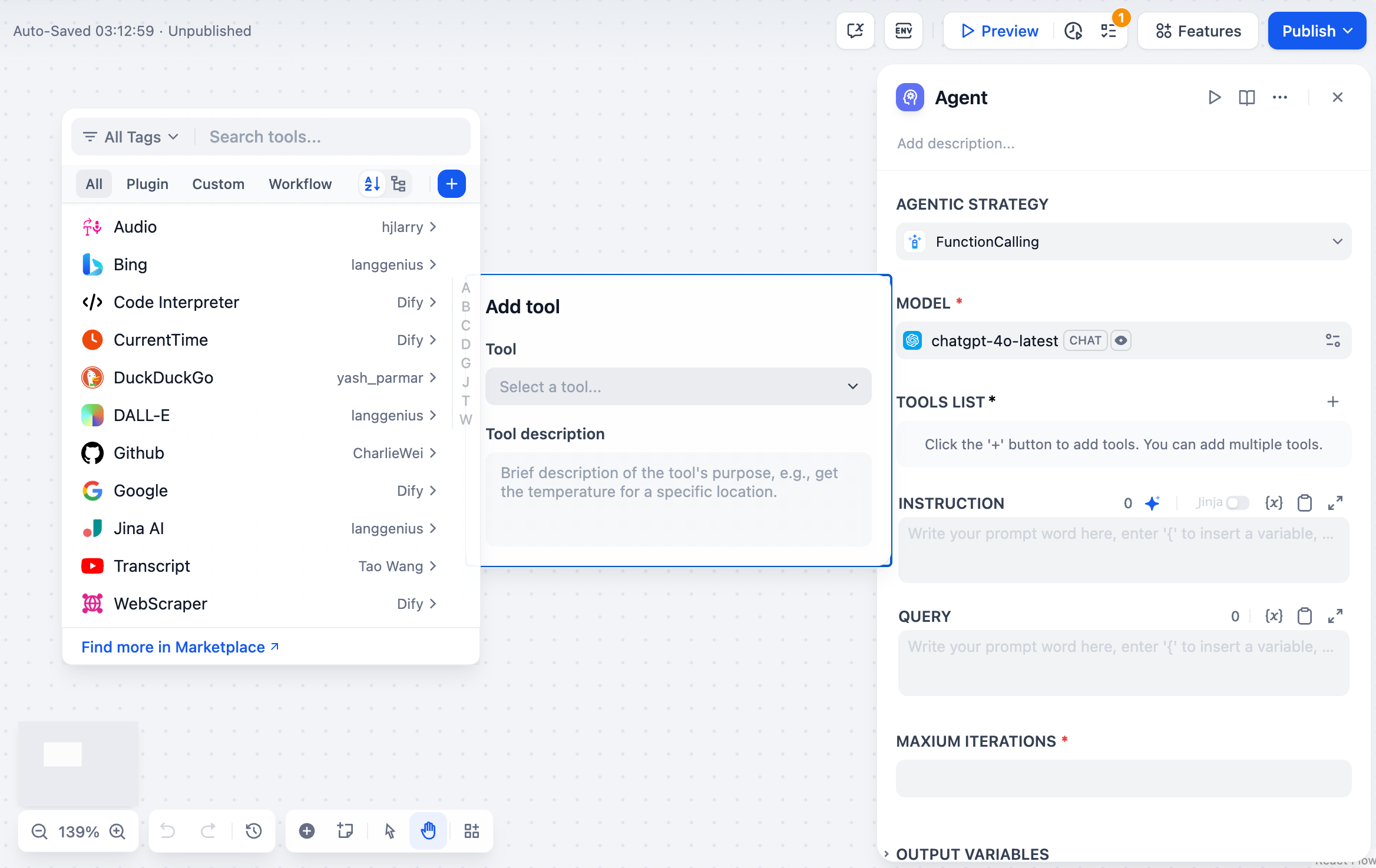
Configure the tools your Agent can access. Each tool requires:Authorization - API keys and credentials for external services configured in your workspaceDescription - Clear explanation of what the tool does and when to use it (this guides the Agent’s decision-making)Parameters - Required and optional inputs the tool accepts with proper validation
Define the Agent’s role, goals, and context using natural language instructions. Use Jinja2 syntax to reference variables from upstream workflow nodes.Query specifies the user input or task the Agent should work on. This can be dynamic content from previous workflow nodes.
Max Iterations sets a safety limit to prevent infinite loops. Configure based on task complexity - simple tasks need 3-5 iterations, while complex research might require 10-15.Memory controls how many previous messages the Agent remembers using TokenBufferMemory. Larger memory windows provide more context but increase token costs. This enables conversational continuity where users can reference previous actions.
Tools can have parameters configured as auto-generated or manual input. Auto-generated parameters (auto: false) are automatically populated by the Agent, while manual input parameters require explicit values that become part of the tool’s permanent configuration.
Agent nodes provide comprehensive output including:Final Answer - The Agent’s ultimate response to the queryTool Outputs - Results from each tool invocation during executionReasoning Trace - Step-by-step decision process (especially detailed with ReAct strategy) available in the JSON outputIteration Count - Number of reasoning cycles usedSuccess Status - Whether the Agent completed the task successfullyAgent Logs - Structured log events with metadata for debugging and monitoring tool invocations
Research and Analysis - Agents can autonomously search multiple sources, synthesize information, and provide comprehensive answers.Troubleshooting - Diagnostic tasks where the Agent needs to gather information, test hypotheses, and adapt its approach based on findings.Multi-step Data Processing - Complex workflows where the next action depends on intermediate results.Dynamic API Integration - Scenarios where the sequence of API calls depends on responses and conditions that can’t be predetermined.
Clear Tool Descriptions help the Agent understand when and how to use each tool effectively.Appropriate Iteration Limits prevent runaway costs while allowing sufficient flexibility for complex tasks.Detailed Instructions provide context about the Agent’s role, goals, and any constraints or preferences.Memory Management balance context retention with token efficiency based on your use case requirements.
Data Security NoticeCommunity Edition uses file-access controls to limit access to agent and session files when the same agent is exposed to multiple end users. These controls reduce the risk of cross-conversation data access through the filesystem, but the Agent runtime is not intended to provide a hardened security boundary between mutually untrusted users or workloads.If your deployment requires strong isolation or strict security or compliance controls, use separately hardened infrastructure or contact Dify to assess an appropriate Cloud or Enterprise option. For Dify Enterprise, contact sales to learn more.
The new Agent node runs an agent as one step of a workflow. Unlike the classic node’s model-with-tools setup, the agent arrives as a complete worker with its own capabilities and sandbox.You pick the agent and tell it what to do; it works through the task on its own and hands the results back to the rest of the flow.
In a Chatflow, the agent doesn’t keep conversation-scoped memory: it handles each message from scratch.
You can invite any published agent: it arrives with its saved capabilities, and you set only its task here.An invited agent is like a full-time employee: its capabilities are managed centrally in Agents. When you publish an update there, every workflow that uses the agent gets it.
To edit its capabilities, click Edit in Agent Console.
If you want changes for this step only, click Make a copy: the node switches to a one-time copy that no longer follows the original.
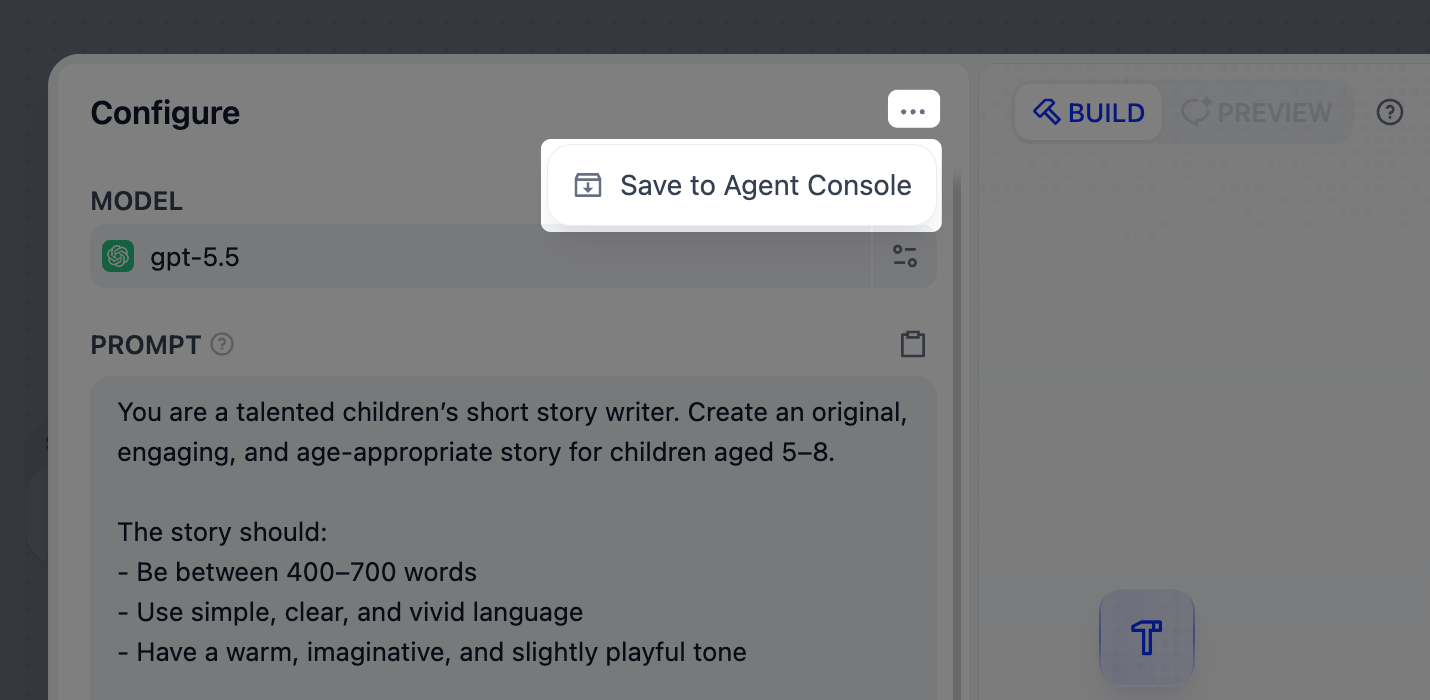
Create a one-time agent that lives on this node alone, and configure it right here, the same way you build in Agents.It’s like a temp you bring in for one job. If it proves its worth, promote it to Agents to reuse it elsewhere.
In Agent task, describe what you need at this step, the way you’d brief a colleague on one job. This is separate from the agent’s own prompt and capabilities. Type / to pull in outputs from earlier nodes.Say you’ve invited a support agent that already knows your product docs and writes in your support tone, and the workflow hands it inbound customer emails. The task covers only this step:
Read the customer email in {{customer_email}} and draft a reply that answers every question in it. Keep it under 150 words.
Every Agent node returns text, files, and json by default: everything the agent writes and produces arrives through them.Often a later step needs one specific piece of that, like a single value or a particular file. Declare it as its own output: type / in the Agent task, choose New output, then name it and pick a type in place. Each declared output can be referenced by downstream nodes on its own.A declared output sits right in the task text, so you can tell the agent exactly what to put in it. For example, in this task {{vendor_name}} and {{quote_file}} are declared outputs:
Compare the three vendor quotes in {{vendor_quotes}} and write a recommendation. Put the winning vendor's name in {{vendor_name}} and its quote PDF in {{quote_file}}.